How to Add an AI Customer Support Chatbot to WordPress With PepoChat

Short answer: Create a free PepoChat account, let it crawl your WordPress site, then install the free PepoCloud AI Support Agent plugin from Plugins > Add New Plugin, paste your Organization ID under Settings > PepoCloud Agent and click Save changes. No theme code is involved. The Free plan includes every feature and 100 AI replies a month; Starter costs $39 a month for 1,000 replies.
- One plugin, one required setting: the Organization ID from Widget Setup.
- The agent answers from your own pages, PDFs and Q&A pairs, and hands off to a person when it cannot.
- Saving the plugin settings purges eight common WordPress caches; purge a CDN yourself.
- WooCommerce stores can add live order lookup with a read-only REST API key.
- Team availability decides what visitors are promised outside your hours.
This guide is for WordPress site owners, from a five-page service business to a WooCommerce store, who want an AI agent to answer customer questions and pass the hard ones to a person.
Every menu name and field label comes from the plugin's settings screen and readme (version 1.0.0) and PepoChat's documentation, read on 6 November 2026. Prices were checked on PepoChat's pricing page the same day. If you are still choosing a tool, read our PepoChat review first.
What you need before you add an AI chatbot to WordPress
You need a WordPress site where you can install plugins (WordPress 5.7 or later, PHP 7.4 or later), an administrator login, and the content you already give customers: pages, policies, price lists. No developer or theme changes are needed.
| Steps | What you do | Where | What you finish with |
|---|---|---|---|
| 1 | Create the account | app.pepochat.com | A workspace and an Organization ID |
| 2 to 3 | Build the knowledge base | PepoChat: Knowledge Base | Your site, files and Q&A pairs indexed |
| 4 to 6 | Set up the widget | PepoChat: Widget Customization | Greeting, colour, allowed domains, lead capture, Team availability |
| 7 to 10 | Install the plugin | WordPress: Plugins, then Settings > PepoCloud Agent | The launcher live on your pages |
| 11 to 12 | Order lookup (stores only) | WooCommerce settings, then PepoChat: Integrations | "Where is my order?" answered from live data |
| 13 | Review | PepoChat: Conversations | A weekly list of fixes |
Steps 1 to 3: create your PepoChat account and build the knowledge base
The knowledge base is the private set of pages, files and notes your agent may answer from. PepoChat uses retrieval-augmented generation (RAG): for every reply it first searches that set, then answers from what it found. When nothing relevant turns up, it says so and offers a person instead of guessing.
1. Create a free PepoChat account
Go to PepoChat's free sign-up page and register with email or Google (email sign-ups confirm a code first), then name your workspace. The Free plan has every feature, with 100 AI replies a month, five knowledge sources and one member.
2. Crawl your WordPress site
Open Knowledge Base, click Add New, choose the website option and paste your address. The crawl follows your site's links, up to 200 pages and three levels deep, respects robots.txt and keeps only each page's main content. The whole crawl counts as one source.
If tag or author archives would eat the 200 pages, use the exclude path filters or import your sitemap instead. Members-only pages are invisible to the crawler, so upload them as files. Pages re-sync weekly; Sync website pages refreshes them at once.
3. Upload PDFs and add Q&A pairs
Upload price lists, manuals and warranty terms from Knowledge Base > Add New: PDF (scanned pages included), DOCX, Markdown, HTML, TXT, CSV, JSON and images, up to 25 MB each. A file with the same name replaces the old version.
For single facts, choose Text & Q&A, then Q&A, and type the question as a customer would ("Do you deliver on Saturdays?") with your answer. Q&A pairs do not count as sources; a Free workspace holds 100.
Steps 4 to 6: set the greeting, brand colour, allowed domains, lead capture and hours
Everything inside the chat is set in PepoChat under Widget Customization, not in WordPress, so later changes reach your site without touching the plugin.
4. Write the greeting and suggested questions, and pick the brand colour
Set the brand color as a hex value; PepoChat picks readable white or black text for it. Name the assistant, adding "AI" if the name could pass for a person. Write a specific greeting message, such as "Hi, I can help with delivery, returns and opening hours, or pass you to the team." Add up to three default suggestions, tappable questions your content answers well. Agent instructions set the tone; facts still come only from the knowledge base.
5. Lock the widget to your domain
Allowed domains is the list of sites permitted to start conversations with your agent. Your Organization ID is visible in your page source, so without the list anyone could copy your snippet and spend your AI replies. Add your domain under Allowed Domains, one per line; subdomains are included automatically, and an empty list allows every site.
6. Turn on lead capture and set Team availability
In the Lead Capture card, switch on Collect contact details and choose when to ask: before the first message, when the agent needs a follow-up, or before handing off to the team. Email is always collected; name, phone and company are optional. New-lead emails to your team need a paid plan. Then set Team availability (see the handoff section).
Finally, click Test the agent. Test chats are free and stay out of analytics, but bookings and integration actions run for real.
Steps 7 to 10: install the PepoCloud AI Support Agent plugin
The Organization ID is the 32-character code that ties a widget to your workspace. Copy it from Widget Setup in the PepoChat dashboard.
7. Install and activate the plugin
In WordPress, go to Plugins > Add New Plugin (Add New on older versions), search for "PepoCloud AI Support Agent", click Install Now, then Activate. It is listed on its WordPress.org directory page. If your host blocks directory installs, download the zip from PepoChat's WordPress plugin page and use Upload Plugin; WordPress's guide to managing plugins covers both routes. Activation opens the settings page directly.
8. Paste your Organization ID under Settings > PepoCloud Agent
Under Connect your workspace, paste the ID into Organization ID. Pasting the whole install snippet works too: the plugin picks the ID out. An invalid value is rejected with "That does not look like a PepoChat Organization ID." and the previous one is kept.
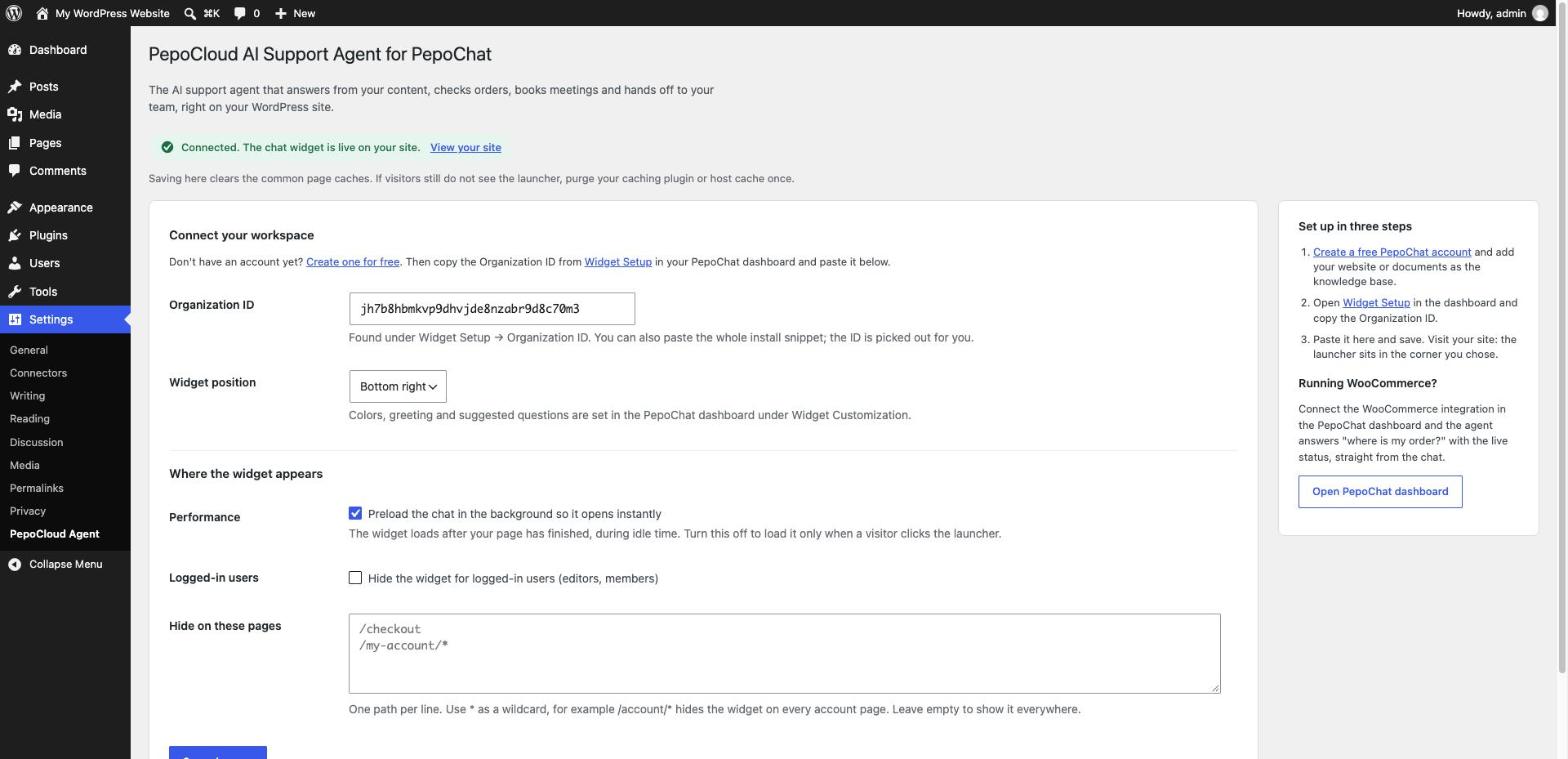
9. Choose the position, preload and where the widget hides
Widget position is Bottom right (default) or Bottom left. Under Where the widget appears:
- Performance: "Preload the chat in the background so it opens instantly" (on by default) loads the chat during idle time; off, it loads on click.
- Logged-in users: "Hide the widget for logged-in users (editors, members)" keeps it away from staff and signed-in members.
- Hide on these pages: one path per line, * as a wildcard: /checkout, /my-account/*. An exact path does not cover pages beneath it, so write /checkout* to include order-received pages.
Click Save changes. The status line turns to "Connected. The chat widget is live on your site."
10. Check it on the live site and purge the cache
Open your site in a private window and click the launcher in your chosen corner.
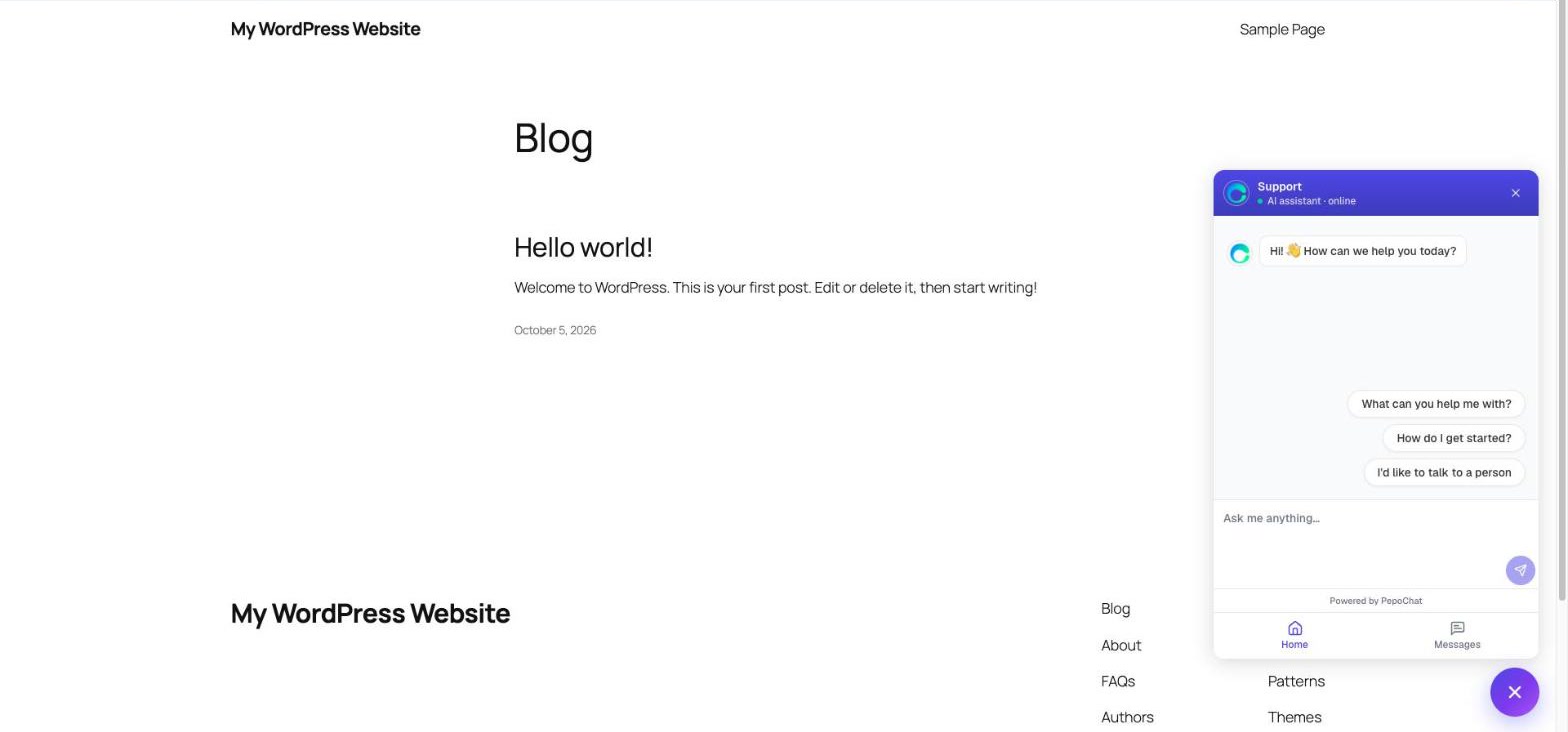
A page cache stores ready-made copies of your pages so WordPress does not rebuild them for each visitor, and it is the usual reason a new widget seems missing. On save, the plugin purges LiteSpeed, WP Rocket, W3 Total Cache, WP Super Cache, WP Fastest Cache, SiteGround, WP Engine and Breeze. A CDN or other host cache needs one manual purge. WordPress's overview of caching layers explains where these sit.
Test the chatbot with real customer questions
Before launch, ask the questions your visitors really send, each in a fresh conversation. The table lists typical questions for a small WordPress business: examples to test with, not logs from a real site.
| Example question to test | What a good answer does | Where the answer comes from |
|---|---|---|
| "Do you ship to Canada, and what does it cost?" | Names countries and rates exactly as your shipping page states; says it does not know if Canada is not mentioned | Shipping page (crawl) |
| "Can I return a sale item?" | Quotes your return window and conditions, including any sale-item exception | Returns page or policy PDF |
| "Where is my order 1042?" | Gives the live status, date and total for that order | WooCommerce order action (steps 11 and 12) |
| "Are you open on Saturday?" | States your hours without inventing holiday hours | Contact page or a Q&A pair |
| "How much is your basic package?" | Gives the published price with no invented discount | Pricing page (crawl) |
| "Is the blue jacket in stock in medium?" | Repeats what the product page said at the last sync, or offers a person; it cannot see live stock | Product page (crawl), then handoff |
| "How long is the warranty?" | Quotes the term from the manual | Uploaded PDF |
| "Do you give discounts to schools?" | Answers exactly as you wrote it | Q&A pair |
| "I was charged twice, can you refund one?" | Makes no promise and offers a person | No source: handoff |
| "Can I talk to a real person?" | Hands the conversation to your team at once | Escalation, no source needed |
For a real example, Vidpal, an AI video tool, has run PepoChat on the Free plan since August 2026. In a 14-question test on vidpal.ai on 6 November 2026, 7 of 10 factual questions were answered correctly, 1 partly and 2 not at all, with a person offered instead. Nothing was invented, and all 4 behaviour checks passed, including a handoff when asked for a person. Vidpal's customer story lists every question, and our write-up of how Vidpal uses PepoChat covers the rest.
Both misses were on pages the agent had not picked up. When an answer is missing, check the page is in the Knowledge Base, or add a Q&A pair in the customer's words.
How to connect WooCommerce order lookup to the chatbot
With a read-only API key, the agent can look up an order by number or list up to three recent orders under a full email address. Neither action changes an order or moves money.
11. Create a read-only WooCommerce API key
The store needs HTTPS, and Settings > Permalinks must not be Plain. Go to WooCommerce > Settings > Advanced > REST API, add a key with description "PepoChat", an administrator as user and Read permissions, and copy the consumer key and secret at once; the secret is shown only once. WooCommerce's REST API documentation covers the same screen.
12. Add the WooCommerce actions in PepoChat
Open Integrations > WooCommerce, enter your store domain (mystore.com/shop if WordPress sits in a folder), paste the key and secret, tick the actions and click Add actions. Test Check WooCommerce order with a real order number, then switch it on.
A caution from PepoChat's docs: order numbers are sequential and the number lookup has no email check, so a guessed number reveals that order's status and total. If that matters, enable only the email lookup, which matches the billing email exactly.
What happens when a visitor asks for a person
Human handoff is the moment the AI stops replying and a person takes over with the full transcript. PepoChat includes it on every plan. Step by step:
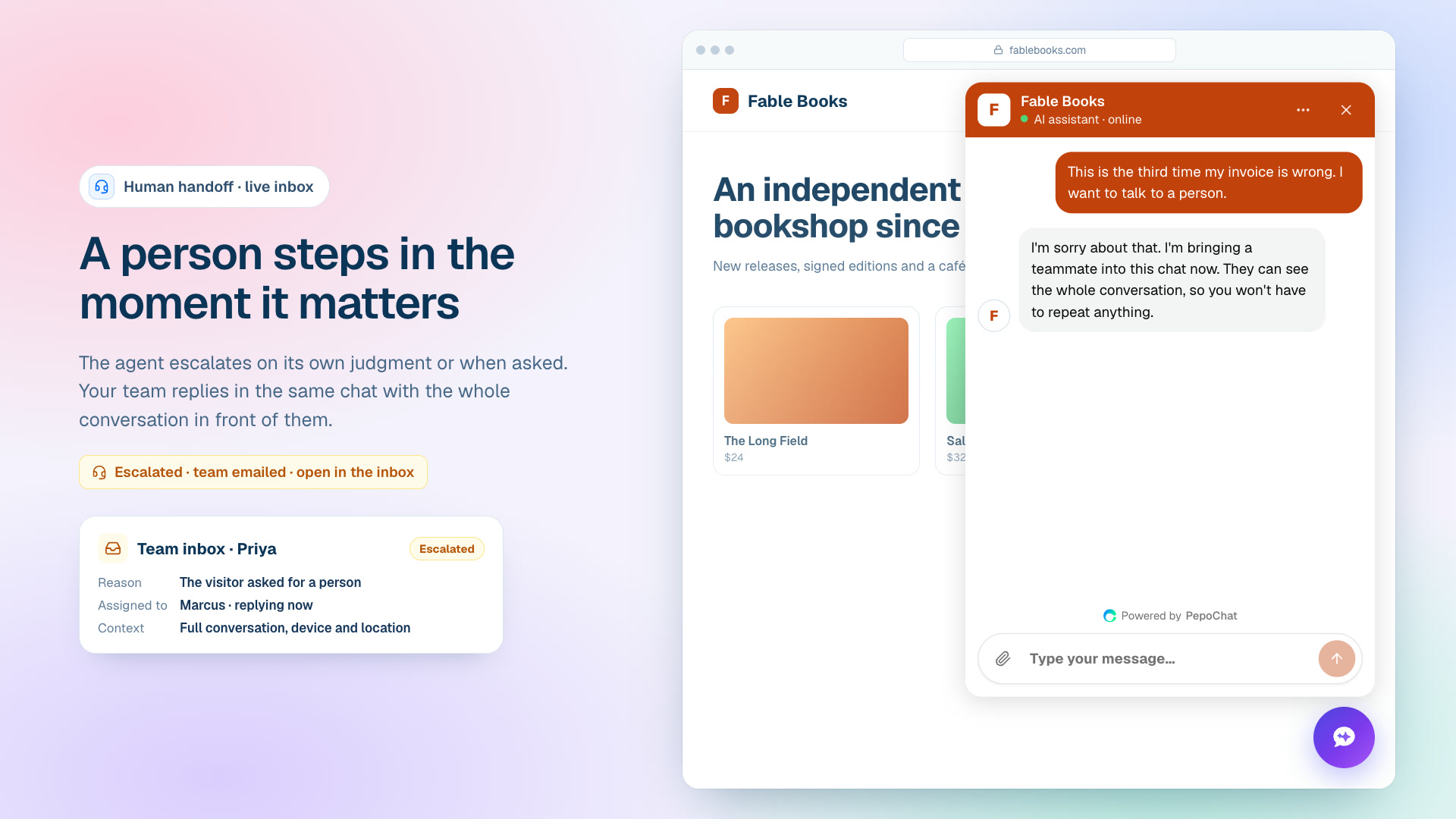
- The visitor asks for a person, or says yes when the agent offers one after finding nothing relevant. A failed tool or reply also triggers a handoff.
- The status changes from unresolved to escalated. The agent goes quiet; the visitor can keep writing.
- Every workspace member gets an email, "A visitor needs a person", with the reason, the last three messages and an Open conversation button, plus Reply by email when the visitor's address is known. A conversation.escalated webhook and the prebuilt Slack action can notify other tools.
- A teammate replies from Conversations, and the reply appears live in the chat under their name and initials.
- The teammate marks it resolved and the visitor can rate it.
Inbox replies are not emailed to the visitor automatically; for anything urgent, use Reply by email or the inbox's Send Email.
What visitors see outside your hours
Team availability sets what the agent promises at a handoff. The AI keeps answering in every mode.
| Team availability mode | What the agent says at a handoff | Status line in the widget |
|---|---|---|
| My team answers in the chat (default) | A teammate will pick up shortly | "AI assistant · online" |
| My team answers during business hours | Inside your hours, a teammate will pick up; outside them, your away message, and it asks once for the visitor's email before handing over | "team online", or "team offline" with the reopening time in the visitor's time zone |
| No one answers live chat, we follow up by email | Never promises a person; gives your away message and asks once for an email | "AI assistant · online" |
Features from PepoChat's documentation, checked 6 November 2026.
The away message runs to 300 characters. A sole owner who checks email twice a day should pick the third mode: it never promises what you cannot deliver.
Who answers the handoffs
Handed-off chats matter most: the double charge, the missing parcel, the large custom order. Often the owner answers them, until the inbox fills during client work. The alternative is a dedicated person: a WoodBows customer support assistant can watch the PepoChat inbox during your hours, answer escalated chats under their own name and follow up overnight arrivals by email. The AI clears the repetitive questions; the person handles the ones that need judgment.

If inbox duty is only part of the job, WoodBows also places virtual assistants for wider admin work.
How to review chatbot conversations in the team inbox
13. Spend a few minutes in Conversations every week
Filter Conversations by status. Escalated chats show where the agent needed help. Fix the content, not the symptom: add the page, replace the PDF or write a Q&A pair. The inbox adds assignment, tags, priority, saved views, macros, internal notes with @mentions, an Enhance button that polishes drafts, and CSV export. Analytics shows AI-labelled topics and the share resolved by the agent versus handed to your team.
Troubleshooting: why the chat widget is not showing on WordPress
Work down the table; most problems are the first row.
| Symptom | Likely cause | Fix |
|---|---|---|
| You see the widget while logged in; visitors do not | A page cache or CDN still serves pages from before the plugin | Save the plugin settings again (it purges eight common caches), then purge your CDN or host cache once |
| The launcher opens with "This website is not allowed to use this chat widget." | Your domain is missing from Allowed Domains | Add it in Widget Customization and click Save Settings |
| Visitors see it, you do not | "Hide the widget for logged-in users" is ticked | Check in a private window, or untick the box |
| Missing on some pages only | A Hide on these pages pattern is broader than intended, for example /shop* also matches /shop-policy | Narrow the pattern and save |
| Missing in your own browser only | An ad blocker or strict privacy extension blocks the chat frame | Test in a private window with extensions off |
| Opens but stays blank | A content-security policy blocks widget.pepochat.com | Allow that origin in script-src and frame-src |
| Nothing appears and the plugin says "Not connected yet" | No valid Organization ID is saved | Copy it again from Widget Setup, paste and save |
| A visitor sees "Chat is not available in your region." | Their country is on the Blocked countries list | Remove the code in Widget Customization |
Plugin or script tag: which install should you use?
PepoChat's universal install is one script tag before the closing body tag; the plugin prints that same tag for you. Use the plugin on almost every WordPress site: no theme file to edit, nothing lost when you switch themes, plus the cache purge and the visibility rules. Paste the tag yourself only if a developer manages your theme in code or every script goes through a tag manager. In Google Tag Manager, use Widget Setup's JavaScript snippet, because GTM drops the HTML snippet's data attributes.
What PepoChat costs on a WordPress site and which plan to pick
An AI reply is one answer the agent writes in a visitor conversation; your team's replies do not count. Every plan has every feature except new-lead emails and phone numbers for inbound calls, which need a paid plan.
| Plan | Price | AI replies a month | Knowledge | Team members |
|---|---|---|---|---|
| Free | $0 | 100 | 5 sources, 20 MB of text | 1 |
| Starter | $39/month ($390/year) | 1,000 | Unlimited sources, 200 MB | 3 |
| Growth | $149/month ($1,490/year) | 5,000 | Unlimited sources, 1 GB | 10 |
| Scale | $499/month ($4,990/year) | 17,000 | Unlimited sources, 5 GB | 20 |
Prices and features from each vendor's own pages, checked 6 November 2026.
Extra replies on paid plans cost $39 per 1,000 and extra seats $15 a month; see PepoChat's pricing page. To choose:
- If you get a handful of chats a week, start on Free; past 100 replies, new conversations go to your inbox instead of failing.
- If a second person needs the inbox, you want new-lead emails or you need more than five sources, choose Starter.
- If a busy WooCommerce store passes roughly 3,800 replies a month, Growth costs less than Starter plus overage.
- If you need WhatsApp, Instagram or email channels, or a published SOC 2 report, compare our roundup of AI chatbots with human handoff.
Limits to know before you rely on PepoChat
PepoChat has gaps. WhatsApp and Messenger are in limited rollout as of November 2026, and there is no Instagram, SMS or email channel. Everyone gets the same AI model. There is no native mobile app, though the dashboard works in a phone browser. The "Powered by PepoChat" line shows on every plan, and no SOC 2 report is published. WooCommerce actions cover orders, not stock or product search. If any of these is a deal-breaker, a full helpdesk suite will serve you better.
What to do next
Create your account, crawl your site and ask ten real questions in the Test the agent drawer before you install anything. PepoChat's documentation covers every setting, and its WordPress chatbot guide compares other install routes. Want a person behind the AI from day one? Book a free consultation with WoodBows.
Frequently asked questions
Is the PepoChat WordPress plugin free?
Yes. The PepoCloud AI Support Agent plugin is free on WordPress.org, and PepoChat's Free plan needs no credit card and includes every feature, with 100 AI replies a month, five knowledge sources and one member. Paid plans start at $39 a month for 1,000 replies. The "Powered by PepoChat" line appears on every plan.
Will an AI chatbot plugin slow down my WordPress site?
The PepoChat plugin adds one script in the footer and loads it asynchronously, so it does not block rendering. With preload on, the chat downloads during idle time; with preload off, only when a visitor clicks the launcher. The chat runs in its own frame, so it cannot clash with your theme's styles or scripts.
Does PepoChat work with Elementor, Divi and block themes?
Yes. The plugin adds the widget through WordPress's standard footer script loading rather than the theme, so it works with classic and block themes and with builders such as Elementor, Divi, Bricks and WPBakery. Switching themes does not remove it. Colours, greeting and suggested questions are set in the PepoChat dashboard, not the builder.
Can the chatbot answer "where is my order?" on WooCommerce?
Yes, after you connect the WooCommerce integration in the PepoChat dashboard with a read-only REST API key. The agent can check an order by number, or list up to three recent orders under a full email address, and reply with the live status, date and total. It cannot change orders, issue refunds or check stock levels.
Why can I see the chat widget but my visitors cannot?
Almost always a page cache. Logged-in views usually bypass the cache, while visitors get copies saved before the plugin was installed. Saving the plugin settings purges LiteSpeed, WP Rocket, W3 Total Cache, WP Super Cache, WP Fastest Cache, SiteGround, WP Engine and Breeze. A CDN or other host cache needs one manual purge. Check in a private window.
What happens when the chatbot cannot answer a question?
It says the answer is not in your knowledge base and offers to connect the visitor with a person, rather than guessing. If the visitor accepts, the conversation is escalated, your team gets an email alert with the last messages, and someone replies from the inbox. Outside your hours, depending on Team availability, the agent asks for an email address first.